
Narrator
Narrator is a built-in screen reader that speaks out loud what is on your screen. Narrator users can customise their speed and volume preferences, and enjoy tasks like browsing the web and reading. 1
Increase productivity with Narrator
It's great for multitasking, like when you need to take notes from an article.
Access Narrator easily by using a keyboard shortcut
Press the Windows logo key  + Crtl + Enter to turn Narrator on and off. This will access Narrator Home, where you can get help, access your settings, and learn about new features.
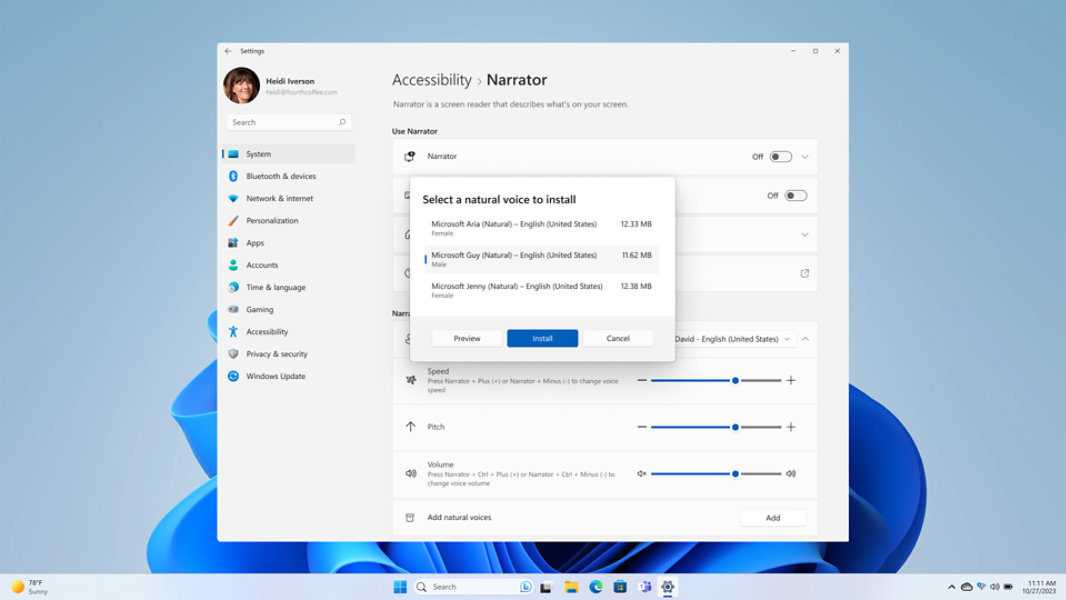
Customise Narrator using natural voices
Narrator voices use modern, on-device, text-to-speech which once downloaded are supported without an internet connection.
- Select the Start button, then select Settings > Accessibility > Narrator.
- Select the Add button under the Add natural voices section.
- Select the voice you want to install. You can install all voices, but you must install them separately. The voices for your current display language will be shown by default.
- Select Install to start the download of the selected voice.
Screens simulated. Features and app availability may vary by region.
- [1] Natural voices available worldwide in EN-US only. Narrator is available worldwide and supported in these languages: Appendix A: Supported languages and voices (microsoft.com)


Follow Microsoft Windows