
Voice access
Easily sign in to your PC with Voice access
You can now use Voice access to log in to your PC and access other areas on the Lock screen.
To turn on Voice access, select Voice access in the Accessibility flyout on the Lock screen.
Follow the instructions on the Voice access bar to bring focus to the password field and use your Voice to dictate your password or PIN.
New text authoring experiences in Voice access to increase productivity
We have added two new experiences to make text authoring easy with Voice access. Users can now use “correction” commands to correct words that are misrecognised by Voice access.
- To correct a specific text or last dictated text, say “Correct <text>” or “Correct that”. Voice access opens a correction window with a list of alternative text suggestions labelled with numbers.
To select any alternative text suggestion from the list, say “Click <number>”. The original text selected in the text box will be replaced by this alternative text.
- To dictate the correct spelling of the text, say “Spell that” or “Click <number>” associated with the “Spell that” option in the list.
In this spelling window, you can dictate letters, numbers, symbols, the phonetic alphabet, and more.
The Voice access guide helps you get started
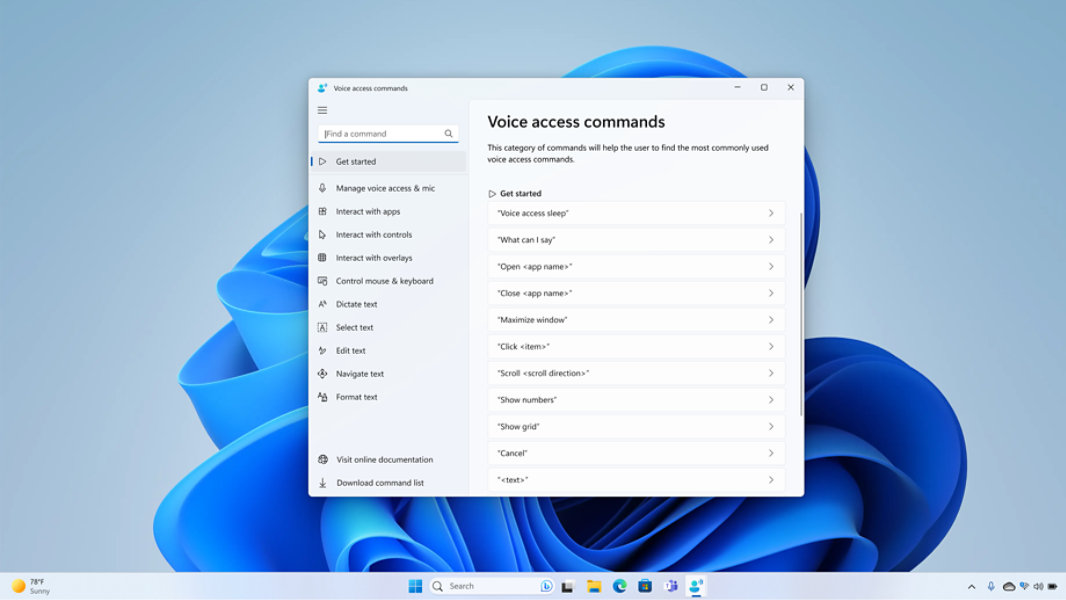
The Voice access guide helps you learn and practice basic Voice access commands that you need to get started with Voice access. Each page in the guide shows various instructions on the left and a practice area on the right. To quickly open the Voice access guide, do one of the following:
- After setting up your microphone, you can either start using Voice access right away or open the guide first. For more information, refer to Set up Voice access.
- Select the Help button on the Voice access UI, and then select Start interactive guide.
- When Voice access is listening, say "Open Voice access guide."
Frequently asked questions
-
Voice typing offers dictation that allows you to author text with voice. Voice access offers both commanding and dictation which means that you can perform not just text authoring, but all tasks on your PC like working and interacting with different apps and editing text.
-
You can use Voice access in a limited capacity in a multi-display set-up. You will not be able to use overlays on displays other than the primary display, and you might see some discrepancies while trying to perform clicking or other editing commands on non-primary displays.
-
You can use a screen reader to set up Voice access for other users. You can start Voice access, download the speech model, select the microphone to be used with Voice access, navigate through the Voice access UI, and access the commands help page to read the supported commands.
-
If you face any problems with downloading the language files, refer to Troubleshooting live captions or Voice access set-up issues.
- [1] Hardware dependent. Requires Windows PC with microphone capability. US English optimised.


Follow Microsoft Windows